

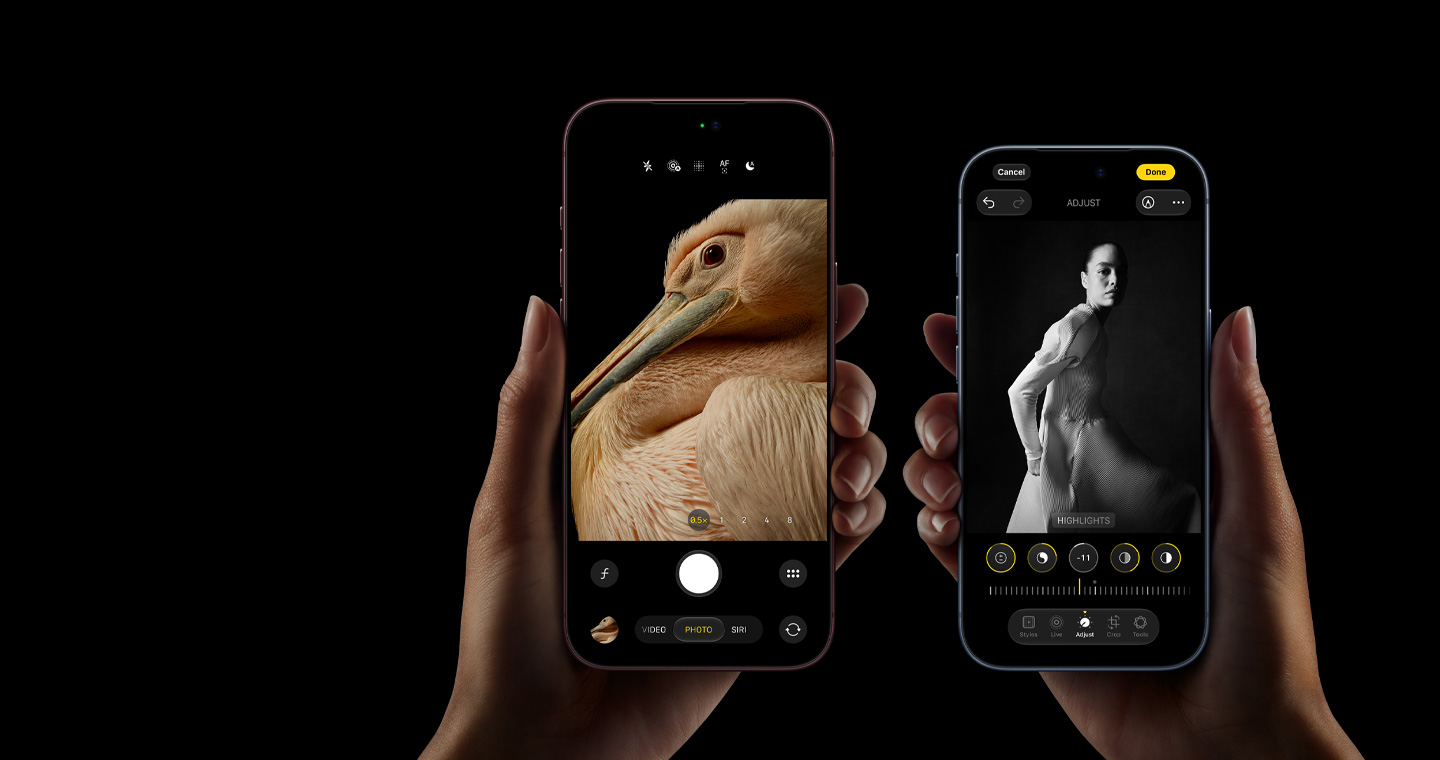
Buying a new iPhone is one of those tech upgrades that feels finished almost as soon as you turn the phone on. Apple makes the setup process incredibly easy: sign in with your Apple Account, bring your old iPhone nearby, transfer your data and, in many cases, most of your apps and settings are already where you expect them to be.
But there’s a difference between getting your new iPhone working and actually setting it up properly.
A lot of useful security and privacy features aren’t necessarily things you’ll think about during the initial setup. Some settings can also have a noticeable effect on how distracting your phone is, how well your data is protected and what happens if the device is ever lost or stolen.
The good news is that you don’t need to spend an afternoon going through every option in Settings. There are just a handful of things worth checking first.
If I were setting up a brand-new iPhone today, these are the five things I’d do before settling into my normal routine.
1. Turn On Find My iPhone
This is probably the most important setting to check.
Go to Settings → [your name] → Find My → Find My iPhone and make sure Find My iPhone, Find My network and Send Last Location are enabled.
Find My can help you locate your iPhone if you lose it, but it can also be extremely useful if the phone is stolen. You can use another Apple device or the Find My service to see its location, put it into Lost Mode or remotely erase it.
The important part is to set this up before something goes wrong. Once your iPhone disappears, it’s too late to turn the feature on.
2. Enable Stolen Device Protection
This is another setting I’d turn on immediately.
You can find it under Settings → Face ID & Passcode → Stolen Device Protection.
The feature is designed to make it harder for someone who has your iPhone and knows your passcode to make important changes to your Apple Account, security settings or other sensitive information.
Apple added this because knowing an iPhone passcode can potentially give a thief access to much more than the phone itself.
You can also adjust the security setting so additional protections are always required, rather than only when you’re away from familiar locations.
For most people, there’s very little reason not to have this enabled.
3. Check Your iCloud Backup
Don’t assume your new iPhone is automatically backed up exactly how you want it.
Go to Settings → [your name] → iCloud → iCloud Backup and make sure Back Up This iPhone is enabled.
You should also check when the last successful backup was completed.
iCloud backup can save important information such as device settings, app data and other information that you may need if your iPhone is lost, damaged or replaced.
One thing worth checking is your available iCloud storage. If your account doesn’t have enough space, your iPhone may not be able to complete a backup.
A new phone is also a good opportunity to decide whether the amount of iCloud storage you’re paying for still makes sense for you.
4. Clean Up Your Notifications
A new iPhone can quickly become a notification machine.
During setup, you’ll probably end up with dozens of apps asking to send notifications. If you simply allow everything, your Lock Screen can become a constant stream of alerts.
Go to Settings → Notifications and look through the apps that are allowed to send notifications.
I’d keep notifications for things you actually need — messages, calls, important calendar events, banking alerts and similar apps.
For everything else, consider turning them off or at least removing them from the Lock Screen.
You can always turn notifications back on later. It’s much easier to start with a clean setup than spend the next few weeks wondering why your phone keeps buzzing.
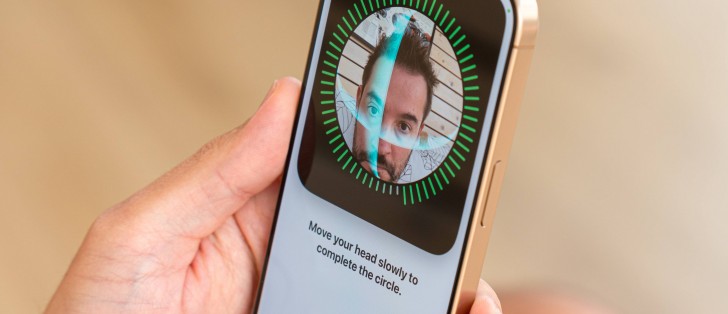
5. Set Up Face ID and Emergency Information
Face ID is one of those features you can configure during the initial setup and then completely forget about.
But it’s worth making sure it works properly from different angles and in the situations where you’ll actually use your phone.
Go to Settings → Face ID & Passcode and check which features are enabled.
I’d also take a few minutes to configure Medical ID and Emergency Contacts in the Health app.
Medical ID can display important emergency information from the Lock Screen without requiring someone to know your passcode, while emergency contacts can be contacted through Apple’s emergency features.
You may never need these settings, but they’re the kind of things you want configured before you need them.
A New iPhone Takes More Than Just a Quick Setup
There’s nothing wrong with transferring your data and immediately starting to use your new iPhone. That’s what makes Apple’s setup process so convenient.
But spending another 10 minutes checking these settings can make a big difference later.
Find My and Stolen Device Protection help protect the device and your account. iCloud Backup helps protect your data. Cleaning up notifications makes the phone less distracting, while Face ID and Emergency settings make sure some important features are ready when you need them.
It’s a small amount of setup that can save you a lot of trouble later.